In this article
- 1 What you need (as of October 2, 2026)
- 2 1. Add Claude from the Chrome Web Store and pin it to your toolbar
- 3 2. Open the side panel right next to the page you’re on
- 4 3. Switch the side panel to Manual before your first errand
- 5 4. Hand it one boring errand on a site that has no connector
- 6 5. Check it worked by watching the tab, not just the chat
- 7 Keep it off the sites that could actually hurt you
- 8 Pick Chrome for your logins, Claude’s built-in browser for everything else
- 9 Start with the errand you keep pushing off
- 10 Common questions
- 11 Where this comes from
Picture the grocery order you keep meaning to place. It takes five to ten minutes. But certain stuff like this, you’d be surprised how often you push it off.
This is why a lot of people don’t do it. Or they just buy junk food, at least that was my problem.
So I built my own app with Opus 5.5. Never thought I’d do that.
It’s a kitchen app that holds next week’s recipes. Now I ask Claude what’s on the menu, swap what I don’t want, and tell it to add all the items we need to my Amazon cart.
I took a picture of my fridge, who knows what we have, and boom. That’s how it works for me.
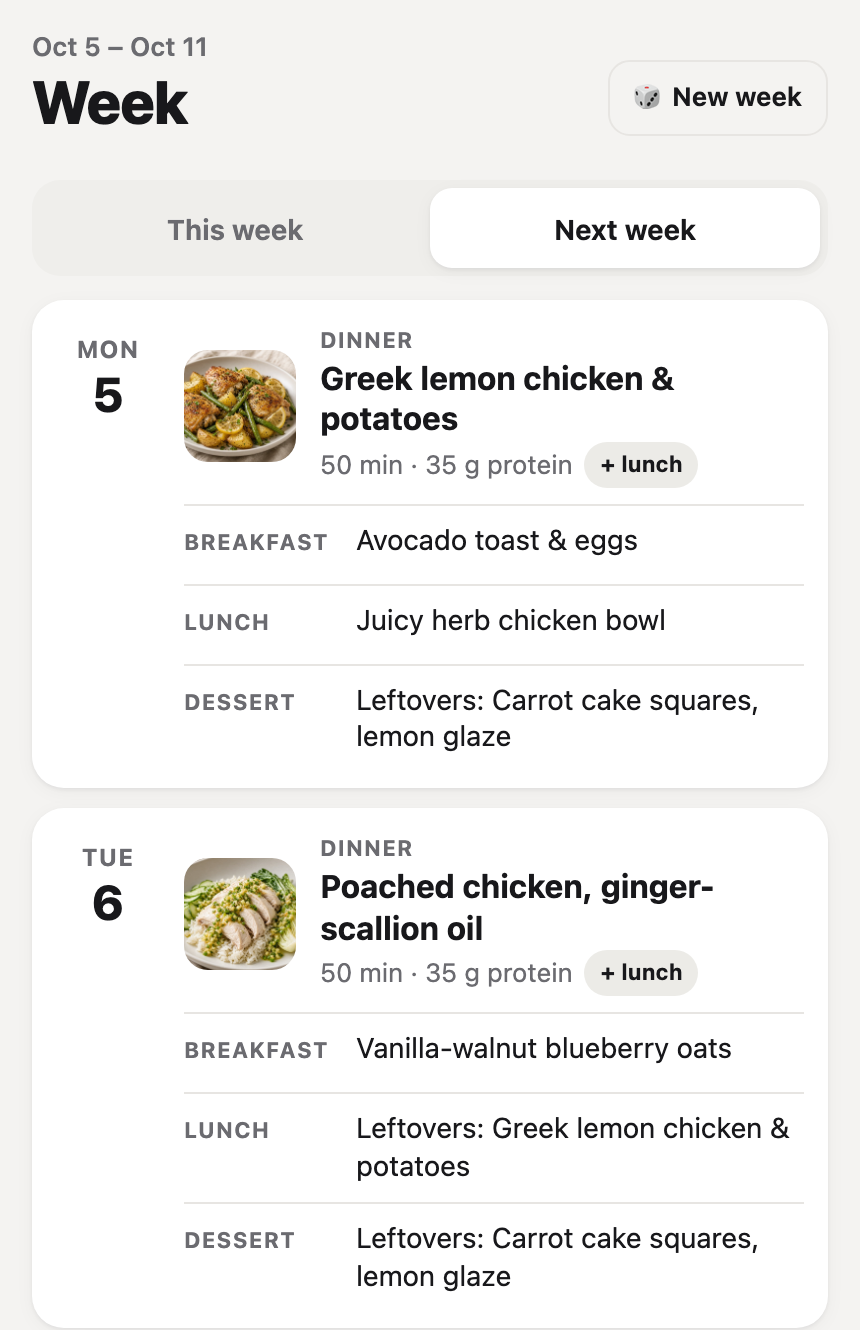 The app I built with Opus 5.5: next week’s menu, October 2, 2026.
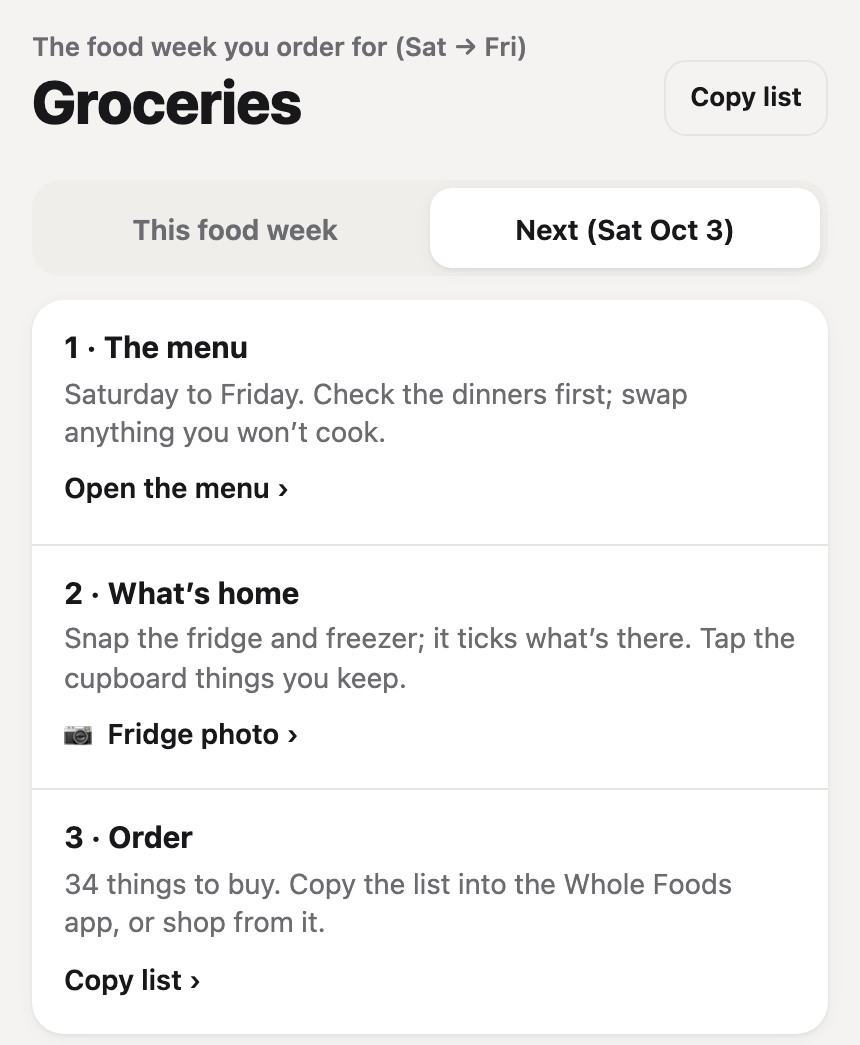 Same app, Groceries tab: menu, fridge photo, then the list Claude shops from.
The cart part is Claude in Chrome: Anthropic’s browser extension that works inside the Chrome tabs you’re already signed into. It reads the page, clicks, types and fills forms. Checkout stays with you, because Anthropic blocks it from buying anything.
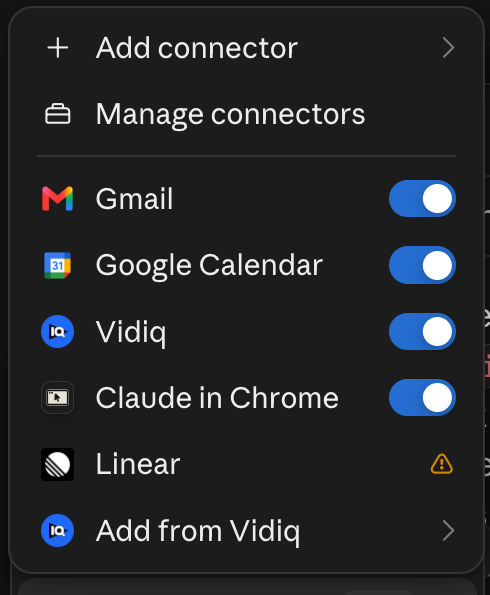 Claude in Chrome switched on in my Claude connectors, September 5, 2026.
A few weeks ago that toggle was on and I barely touched it. What changed is just seeing other people use it and being curious enough to try it.
Here’s the setup in five steps. The one setting to change before your first errand is in step 3.
What you need (as of October 2, 2026)
- A paid Claude plan. Pro, Max, Team or Enterprise, per Anthropic’s get started guide. Free doesn’t include it; Claude’s free plan covers what $0 gets you.
- Google Chrome on a computer. Not Edge, Brave, Arc or another Chromium browser, and not your phone.
- About 15 minutes, plus one boring errand that lives behind a login.
- A check with IT if it’s a work laptop. Anthropic’s safety page says to keep it off work accounts with sensitive company data, and Team or Enterprise admins can limit which sites it reaches.
- Skip for now: Skip all approvals and scheduled shortcuts. Get one errand right by hand first.
1. Add Claude from the Chrome Web Store and pin it to your toolbar
Chrome Web Store > search “Claude” > Add to Chrome > sign in with your Claude account > puzzle piece icon > thumbtack next to Claude > grant the permissions.
Look for the listing published by claude.com. Pinning matters, because the pinned icon is how you open it every time after this.
 The Claude listing on the Chrome Web Store, October 2, 2026.
The rating is 2.8 stars, so not everyone loves it. Judy Sanhz at XDA Developers went in skeptical and wrote: “I installed this Chrome extension expecting to uninstall it, and that’s not happening any time soon.”
2. Open the side panel right next to the page you’re on
Click the pinned Claude icon in your Chrome toolbar. The panel opens on the right side of the tab, and Claude can see the page you’re looking at.
That’s the whole appeal for me. You have the chat right next to it and you’re asking questions and you can see your browser.
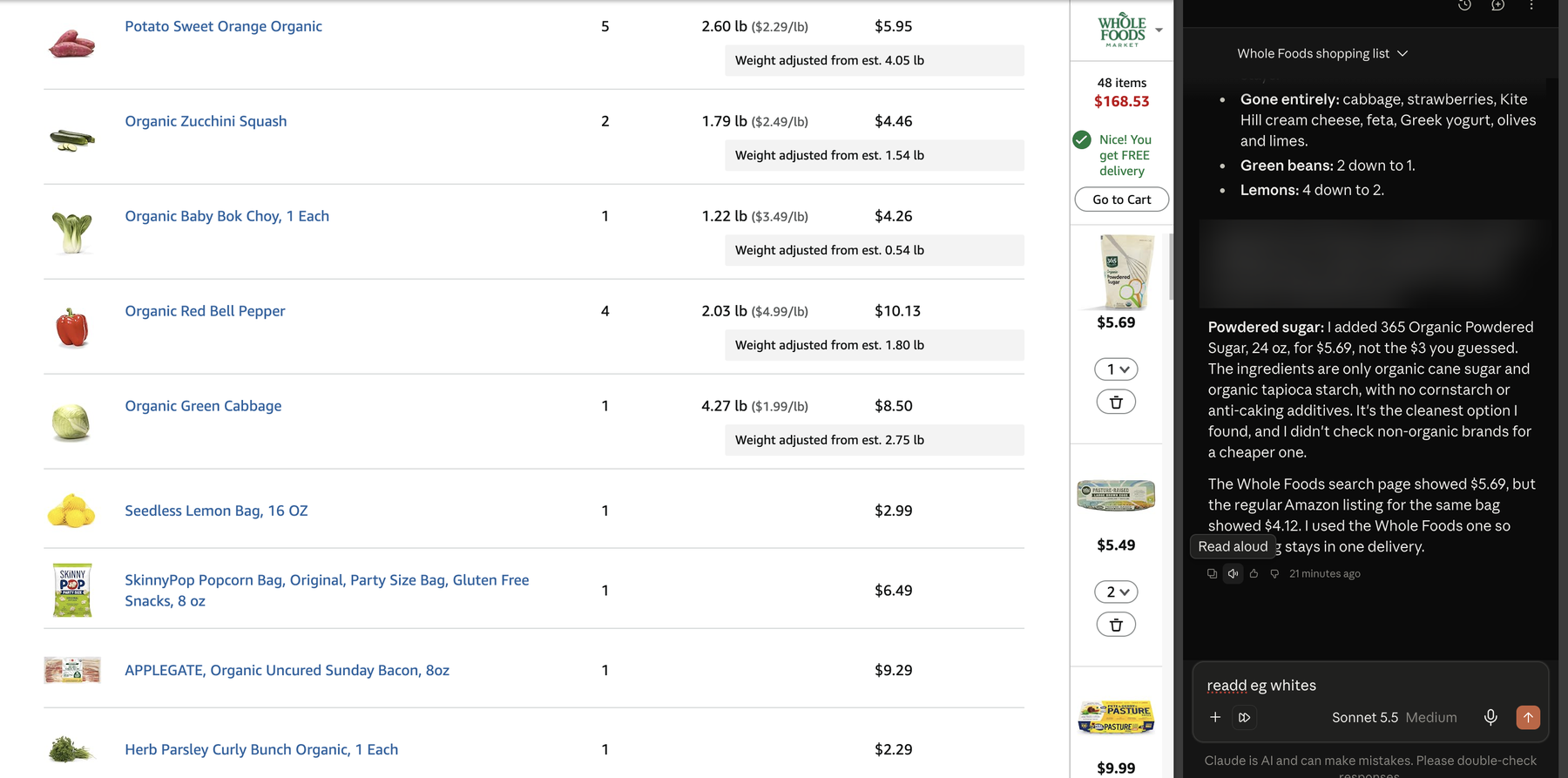 My real grocery order with the side panel open, October 2, 2026. One line is blurred for privacy.
On Max and Team plans, on Pro as the rollout reaches you, and on Enterprise once an admin turns it on, the side panel runs as a Claude Cowork session. Anthropic’s guide says that means:
- Your conversations are saved in your history like any other session.
- Sessions move with you, so you can pick one up on the web, desktop or mobile app.
- Your skills, plugins and connectors work there too.
If you’d rather have the old panel, click the three dots in the upper right corner and pick Switch back to classic. Recording a workflow only works in the classic panel.
Using the Claude desktop app instead? Settings > Connectors > Claude in Chrome > Configure, then toggle it on. Anthropic says it’s off by default in each chat, so turn it on from the Connectors drop-down in the conversation where you need it.
3. Switch the side panel to Manual before your first errand
This is the one setting. The side panel starts on Automatically approve, and it keeps whatever you pick for future sessions.
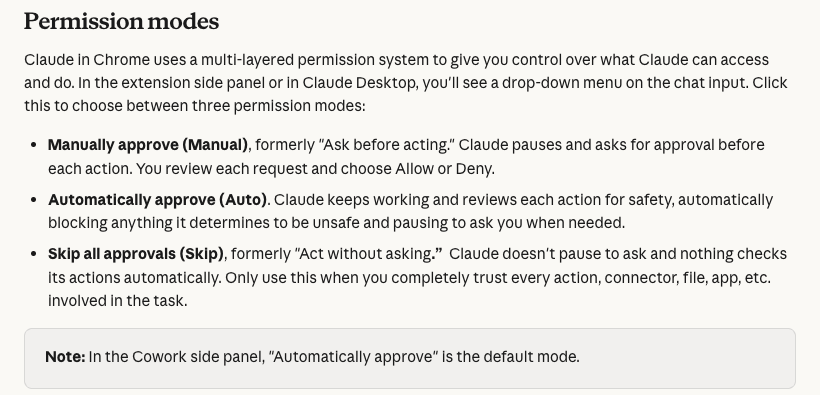 Anthropic’s Claude in Chrome permissions guide, updated August 12, 2026.
My first guess was that it doesn’t just automatically do stuff, that you would have to ask it to do something. Half right. It waits for you to give it a task. But once you do, Auto keeps clicking and typing through the steps on its own, with a safety check reviewing each action instead of you.
Here are the three modes on Anthropic’s permissions guide, with the old names you’ll still see in older tutorials:
| Mode | Old name | What it does | Use it for |
|---|---|---|---|
| Manually approve | Ask before acting | Asks you before each action | Your first errands, anything on your own accounts |
| Automatically approve (side panel default) | New | Keeps going, a safety check reviews each action and blocks what looks unsafe | An errand you've already watched it do once |
| Skip all approvals | Act without asking | No pausing, and nothing checks its actions | Skip it. Anthropic says only when you completely trust every action, connector, file and app |
On Manual in the side panel, every request gives you three buttons: Allow all for this website, Allow this time only, or Deny. Start with “this time only”. It’s slower, and that’s the point the first time.
Two more reasons to change it. Anthropic says auto mode “consumes more of your usage limit than the other modes.” And its own advice for “money, messages sent as you, important files” is to stay close or switch back to Manual.
The desktop app has the same switch. Mine sits on Manual:
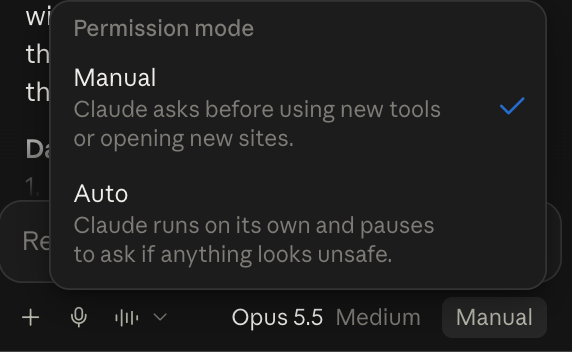 My Claude desktop permission menu set to Manual, September 25, 2026.
4. Hand it one boring errand on a site that has no connector
Gmail already has a Claude connector, so email doesn’t need the browser. Chrome earns its spot on the other ones. It’s those apps that are finicky that don’t have that support, you can just now do it. The best Claude connectors page has the ones worth turning on first.
LinkedIn is my example. Before, I’d lean on a paid scraper like Apify for that kind of data. With Chrome, I had it go through my LinkedIn analytics while I was signed in: which posts got the most impressions, plus different hook ideas.
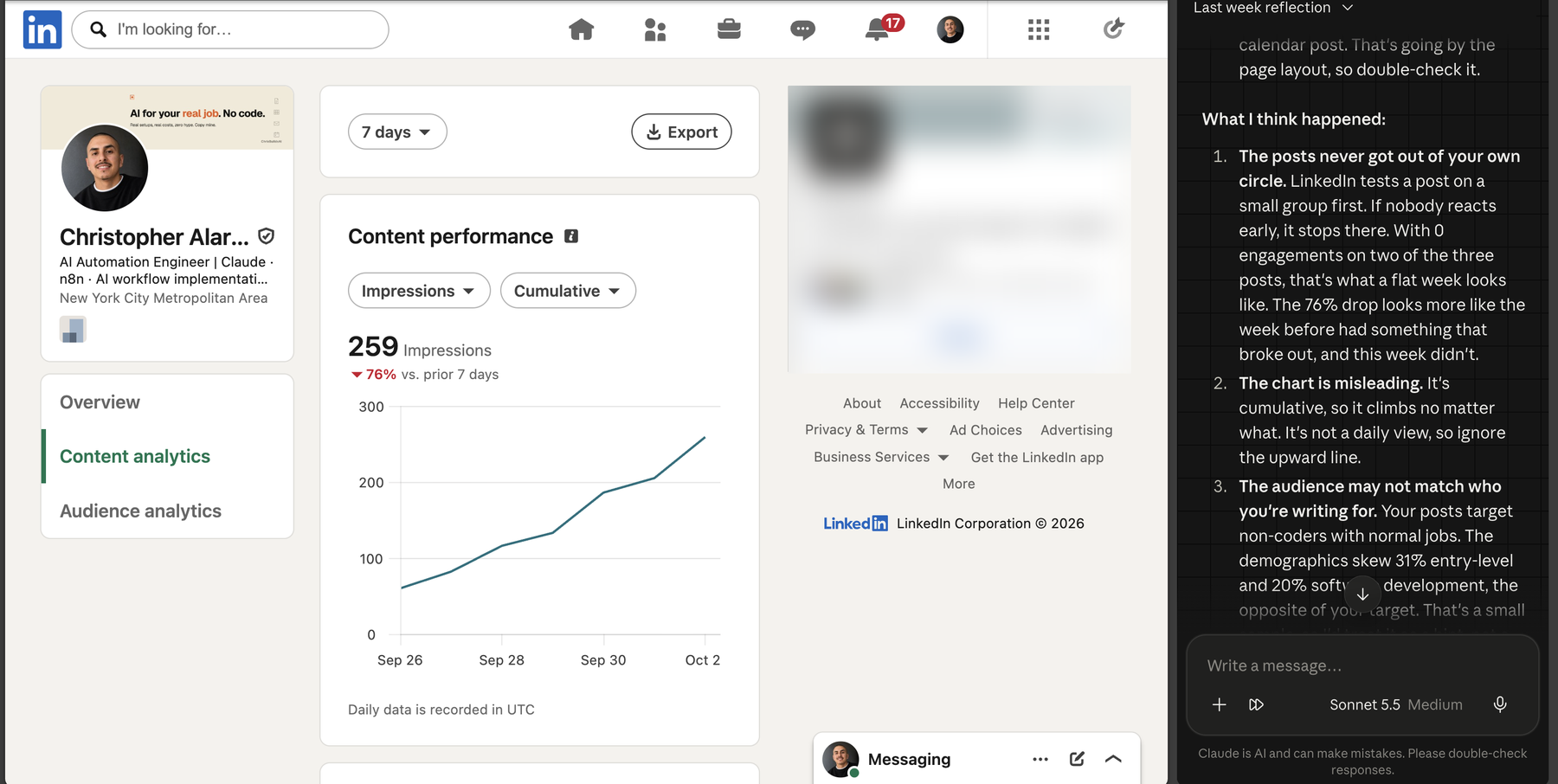 Claude reading my LinkedIn analytics while I’m signed in, October 2, 2026. The ad is blurred.
Instead of copying and pasting from the browser, I can just say look at this. Steal this prompt and give it 15 minutes:
Look at my LinkedIn analytics for the last 30 days. Tell me which 3 posts got the most impressions, what they have in common, and give me 3 hook ideas for next week. Only open LinkedIn pages, and don't post or edit anything.The grocery version works the same way:
Read the grocery list on this page. Search Amazon for each item and add the closest match to my cart. If you're not sure an item matches, ask me first. Don't check out.Anthropic’s guide lists what the side panel is good at: comparing what’s open across your tabs, pulling details off a page into a note, doc or form, and walking through a task on a site step by step while you watch.
When a prompt works, save it as a shortcut and type / in the chat to run it again. You can schedule shortcuts too, but a live browser login is a shaky fit for jobs that run while you’re away. Claude Cowork scheduled tasks explains why.
Applicable for: marketers, recruiters, ops people, anyone stuck in a portal with no export button.
5. Check it worked by watching the tab, not just the chat
The tell is simple. If the answer names things that only exist on your signed-in page (your post titles, your numbers, your cart), it read the page. If it sounds like a generic blog post, it didn’t.
Watch the tab while it works. On Manual you’ll see each site request pop up before anything happens. If nothing comes back from the page, refresh the tab and check that the extension has permission for that site.
Stop the task right away if Claude starts talking about something unrelated, opens a site you didn’t expect, or asks for sensitive information. Anthropic names those three as signs of prompt injection, meaning instructions hidden in a page trying to steer it.
Keep it off the sites that could actually hurt you
A commenter on my YouTube channel put it plainly: “Giving AI access to your computer, passwords, etc. What could go wrong?” Fair question. Anthropic’s answer starts with a hard list of things it won’t do no matter which mode you pick.
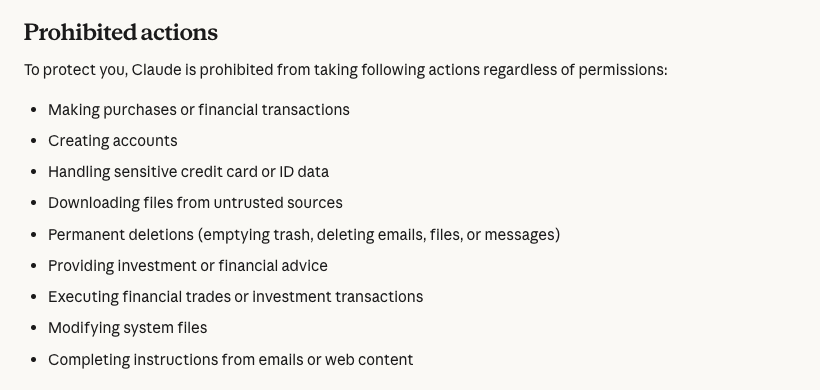 Anthropic’s prohibited actions list for Claude in Chrome, checked October 2, 2026.
It also always asks before it downloads a file, types sensitive information into a page, or grants an authorization. Banking, investment and crypto sites are blocked by default. For passwords, a 1Password sign-in beta on macOS fills the login so Claude never sees it.
One more thing: when it’s on, Claude takes screenshots of your active tab, and those land in the conversation and its history. Anthropic’s own words on prompt injection: “The risk is not zero.”
So here’s what I do. When you’re seeing sensitive information, I’m not gonna have it look at it. I’d rather feed it a screenshot, in a new chat in the actual Claude app so it’s not mixed up with the browser task. Or I disable the extension temporarily.
I figured taxes would be a good one, because I was just copying stuff and taking screenshots. Anthropic says no: its safety page says to keep it off financial, legal and medical work. Taxes get the screenshot rule, not the extension.
If you want extra cover, run it in a separate Chrome profile with no bank or health logins.
Pick Chrome for your logins, Claude’s built-in browser for everything else
Since September 16, 2026, Claude can browse two ways: with the browser built into the Claude desktop app, or in your own Chrome through this extension. Anthropic’s built-in browser guide puts the difference like this:
- Claude in Chrome works on the page you’re already on, with the accounts you’re already signed in to.
- The built-in browser is Claude’s own, nothing to install, and it doesn’t touch your tabs or logins. The desktop app has to stay open and online.
If you already use Claude in Chrome, it stays your default. Switch in Settings > Cowork > Preferred browser. For the finicky signed-in sites in step 4, that means Chrome, because the built-in browser only gets the logins you import into it, site by site.
How to use Claude Cowork walks through handing it a full job, and Claude Cowork is now Claude explains the September merge.
Start with the errand you keep pushing off
The grocery order was never hard. It was five to ten minutes I kept not spending, and that’s exactly the kind of job this is for.
My rule: Manual first, finicky sites only, and anything sensitive gets a screenshot in a fresh chat instead. Pick the one errand you’ve been putting off, turn the side panel to Manual, and watch it do it once. For the rest of the Claude setup around it, start at Claude Guides.
Common questions
Is the Claude Chrome extension free?
No. It needs Pro, Max, Team or Enterprise, per Anthropic’s help center as of October 2, 2026, and Claude’s pricing table marks it as not on Free. If sign-in fails, Anthropic’s first fix is checking that your paid plan is active.
Does Claude in Chrome work in Edge, Brave, Arc or on my phone?
No. It runs in Google Chrome on a computer only. Anthropic says other Chromium browsers and mobile aren’t supported, though a saved side panel session can be picked up later in the mobile app.
Why does Claude in Chrome use so much of my usage limit?
Browser work costs more than chat, and the default mode costs the most. Anthropic says browser interactions are “more compute-intensive than regular chats,” and Automatically approve uses more than the other modes. Manual cuts the extra checking. The meters themselves are explained in Claude usage limits.
Claude Chrome extension not working: what should I check?
Check your paid plan, refresh the page, and make sure the extension has permission for that site. Anthropic also says to update Chrome, turn off extensions that interfere, and sign out and back in. Banking, investment and crypto sites are blocked by default, so those won’t load for it at all.
Is Claude for Chrome still in beta?
Anthropic made it generally available on every paid plan on August 26, 2026, but the help center still calls the Chrome side panel beta. Claude Code can drive Chrome too, but that version is for people building websites, not this side panel.
Where this comes from
The install steps, modes and safety rules come from Anthropic’s help center and the Chrome Web Store, checked October 2, 2026.
The kitchen app is mine; the two app screens are from my phone view on October 2, 2026. The grocery order and the LinkedIn read are my own Chrome, same day. I haven’t tested Skip all approvals or scheduled shortcuts for this guide.
Published October 2, 2026. Last reviewed October 2, 2026 against Anthropic’s help center.
This post is part of Claude Guides, the hub with every plan decision, task comparison, and setup guide for using Claude without code.

Written by
Chris AlarconChris Alarcon shows people who don’t code the boring Claude setup that actually works. He runs his one-person operation on these systems and shares every workflow, prompt, and tool combo in public. Start with the 15 prompts he uses every day.
The boring setup
It still won't know you tomorrow.
The Setup is one folder. Drop it into a Project, answer three questions, and Claude or ChatGPT writes your memory file and your voice file itself. It stops forgetting you, stops sounding like AI, and runs three real jobs by name. Twenty minutes tonight. No code. $39, 30-day refund.
See The Setup →The 15 AI prompts I actually use every day
I tested hundreds and kept the 15 that survived. You get them right away, then one short email from me every Tuesday.