How to Get a Daily AI Brief of What Needs You, Not a Wall of News (2026)
Chris Alarcon ·
$ you'll have
One short message a day that lists only what needs you, with the news waiting somewhere you visit when you choose.
ok your job, with the steps below
- Cost
- Free on ChatGPT Free or Gemini in the US; $20 a month for exact times on ChatGPT Plus or Claude Pro
- Tools
- ChatGPT, Claude or Gemini · Email or your phone's notifications
Why this setup, and what you need
Seven a.m., and the morning brief is already a wall of text.
Maybe yours is a ChatGPT brief you stopped opening after a week. Or six news tabs before your first meeting. Too much, so you read none of it.
Mine is a list one of my robots posts to my Slack every morning, called “Waiting on you.” On October 29 it had 82 rows under “Needs you.” Line two said another robot of mine had crashed.
So I had to ask myself. Do you actually read the 7am? It’s a wall of text. I built it, and I don’t read it top to bottom.
What I actually use now is two things: a message when a real person needs me, and a news tab inside my own app. I rely more on the Ship Lean Studio where I check AI News, X. That’s what has worked for me.
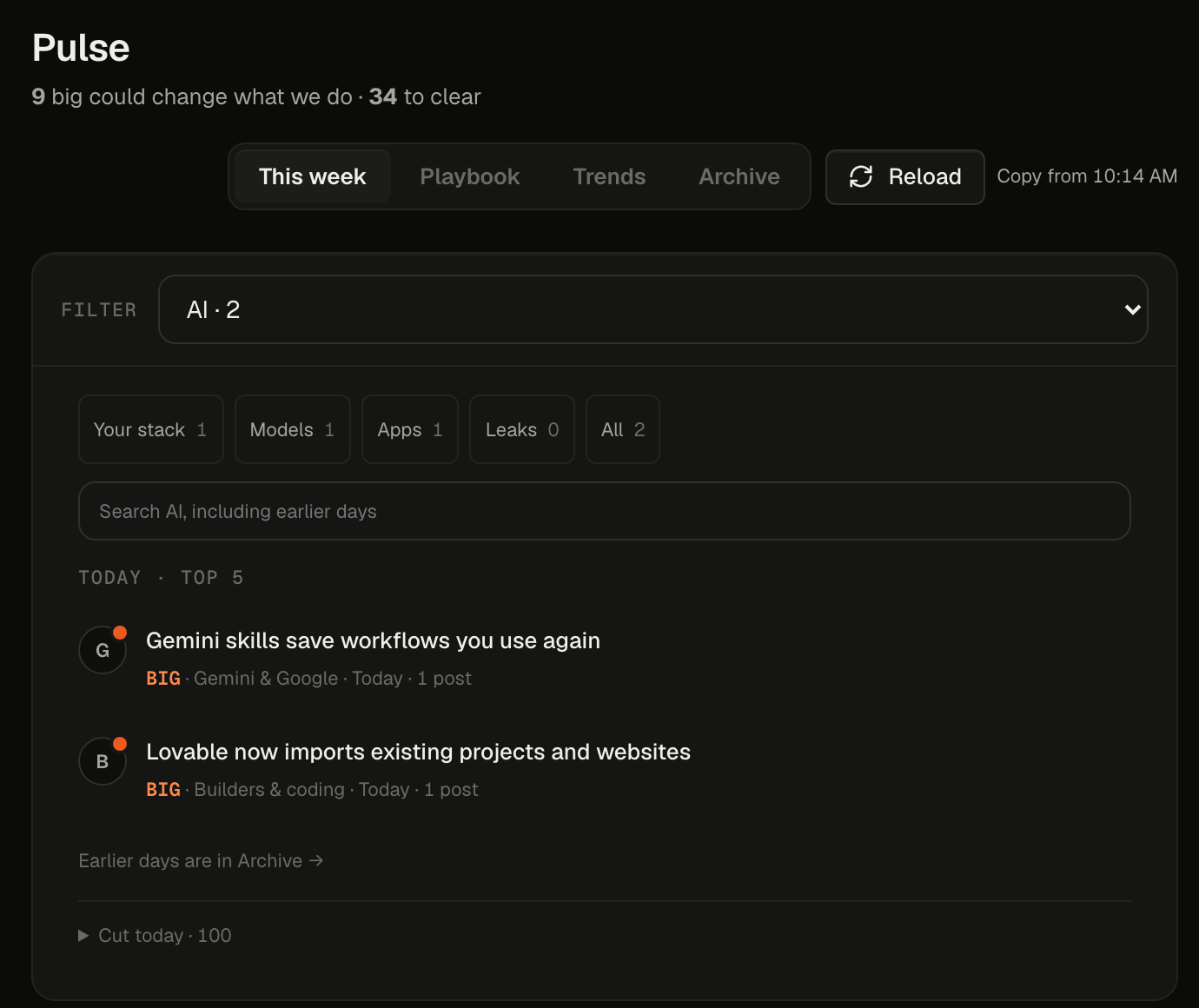 My Studio’s AI news tab, October 29, 2026. Two items made it; 100 got cut.
You don’t need my app. The AI you already pay for can do the small version tonight.
How to get a daily AI brief of what needs you, in five steps:
- Split it in two: what needs you gets a message, news waits.
- Give it three to five sources from your own field.
- Schedule it in ChatGPT, Claude or Gemini.
- Cap it short and send it where you already look.
- Check once a week that it still runs.
What you need (as of October 29, 2026)
- One AI you already have. ChatGPT Free runs one task a day; Claude needs Pro or higher; Gemini’s Daily Brief is free in the US. Details and sources are in step 3.
- Three to five sources for your field. A few blogs or news pages you’d trust if a coworker sent them.
- One place you already look. Your email, your phone’s notifications, or a chat app.
- A work account? Gemini’s Daily Brief doesn’t work on work or school Google accounts. Ask IT before you connect a work inbox to any of these.
- Skip for now: a dashboard, a Mac mini, a hundred robots. One scheduled message is the whole first version.
Step 1: Split it in two: what needs you, and news that can wait
Write two lists before you open any app. One for things that interrupt you, one for things that can wait until you go looking.
My split, in my words: What’s allowed to interrupt me? Email, right? That is important. News that’s happening usually can go on the dashboard.
| Interrupts me (a message) | Waits for me (a place I visit) |
|---|---|
| A real person replied or is waiting on me | AI launches and feature drops |
| A deadline in the next day or two | Industry news and blog posts |
| Something that costs money if I sit on it | Trends, think pieces, “what this means” |
The money row is real. When my ChatGPT agent told me the insurance guy replied, I answered.
The longer you take, the longer it’s gonna get to save you money. So it’s pretty urgent. You gotta know what to jump on.
That doesn’t mean dropping everything. Is it something you’re gonna drop everything in the moment? Probably not, but it’s something that if you have time, just do it quick.
Applicable for: managers, ops leads, nurses, finance folks, anyone whose morning starts with checking five apps to find the one thing that matters.
Step 2: Give it three to five sources from your own field
Pick sources the way you’d pick coworkers to listen to. Few, specific, and from your world.
If you’re starting from zero, just keep it simple. In the AI space, that’s major blog sources like Anthropic and OpenAI.
“If you’re in pharmaceutical you would give something different. If you’re in finance, you would give different companies, right? Track different things, stocks, whatever.”
So a nurse manager might list a nursing association’s news page and a hospital trade site. A finance lead might list three companies and one market news page.
Write yours down like this, so you can paste it into the prompt in step 4:
Sources:
- Anthropic news: anthropic.com/news
- OpenAI news: openai.com/news
- [one trade or news site from your field]
One catch for the finance crowd: Google says Gemini prepares a scheduled result within the hour before delivery, so fast-moving numbers like stock prices “won’t be the latest” when you read them. A morning brief is for what changed, not a live quote.
Step 3: Schedule it in the AI you already pay for
Pick the row for the plan you have. All four can run every morning without you opening anything.
| Option | Plan, as of October 29, 2026 | Pick the exact time? | Where it shows up |
|---|---|---|---|
| ChatGPT scheduled task | Free: one task a day in a flexible window. Paid plans: exact times, up to hourly | Paid plans only | Push, email or both (Settings > Notifications) |
| Claude scheduled task | Pro, Max, Team, Enterprise | Yes: hourly, daily, weekdays or weekly | Claude’s Scheduled page; runs while your computer sleeps |
| Gemini Daily Brief | No subscription in the US; personal Google account, 18+, English, with Memory on and Gmail and Calendar connected | No time setting on Google’s pages; arrives each morning | The Gemini app, built from Gmail, Calendar and your Gemini chats |
| Gemini scheduled action | Rolling out to personal Google accounts; up to 10 at once | Yes | A Gemini notification |
Sources: OpenAI’s scheduled tasks article, Anthropic’s scheduled tasks page, Google’s Daily Brief help and scheduled actions help, plus 9to5Google on the free US change. All read October 29, 2026.
Looking for ChatGPT Pulse? It’s gone. OpenAI’s release notes for June 17, 2026 say “Pulse is being sunset as proactive updates move into scheduled tasks.” The same notes suggest asking ChatGPT to schedule a daily briefing instead.
Gemini’s Daily Brief is the zero-setup pick, but it only reads your Google stuff. It won’t watch your field’s news sources. For that, use a scheduled task or a Gemini scheduled action with the prompt in step 4.
On Claude, the full setup walk-through is in Claude Cowork scheduled tasks.
Step 4: Cap it short and send it where you already look
Paste this into a new chat and ask it to run every weekday morning. Swap the brackets for your own.
Every weekday morning, write me a short brief.

Sources to check for anything new since yesterday:
[3 to 5 sources for your field]

Also check my [email / calendar, if connected] for:
- a reply from a real person I haven't answered
- a deadline in the next 2 days

Rules:
- Two sections: "Needs me today" and "Worth a look".
- "Needs me today" only has things I have to act on. Max 3.
- "Worth a look" has max 3 items, one line each, with the link.
- Under 150 words total.
- If nothing needs me, say so in one line and stop.
- Never send, reply or delete anything.
The cap is the whole point. What you don’t want is a big block of text that you’re not gonna read.
My own news alerts run on the same idea. My Drop Watch robot can only send me one AI news ping a day and four a week. Since October 11 it has let 10 through and held 22 back for the cap.
The first one through: “GPT-6 is rolling out to everyone in the ChatGPT Chat tab.”
Where it lands is your call. Mine moved twice. The messages I used to get on Telegram and then email. To me it works better on an app.
If you’re starting out, I’d still say email: “I prefer email because I see it all the time. That’s just me though. Everybody’s different.”
Step 5: Check once a week that it still runs
Open the Scheduled page in ChatGPT or Claude every Friday and make sure yesterday’s run happened. OpenAI’s help page warns that inactive tasks “may pause automatically.”
Here’s why this step exists. On October 28 at 7:15 a.m., the robot that asks me about my task board crashed. One badly filled reminder row in its list took the whole thing down.
My health check flagged it at 7:45. The next morning it was still down, named on line two of that 7 a.m. post.
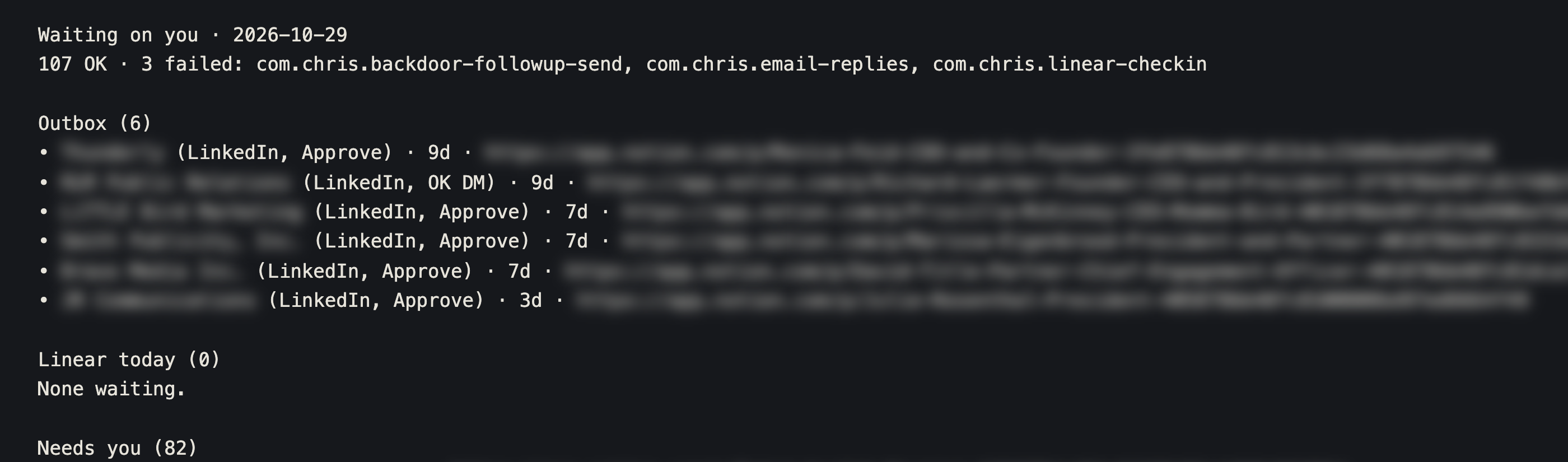 The log copy of my October 29 “Waiting on you” Slack post. Names and links blurred.
I didn’t even know this, to be honest. The crash was in the brief. The brief was too long to read.
That’s the trap andrew_k described on Hacker News: “it still fails my daily briefing from time to time, and I keep debugging it, which isn’t how I want to spend my time.”
It’s hard to keep up with all the bots, to be honest. So I keep track of mine on a board in my own app called Under the Hood: about a hundred bots and automations, many running in the background. It’s easy to forget though.
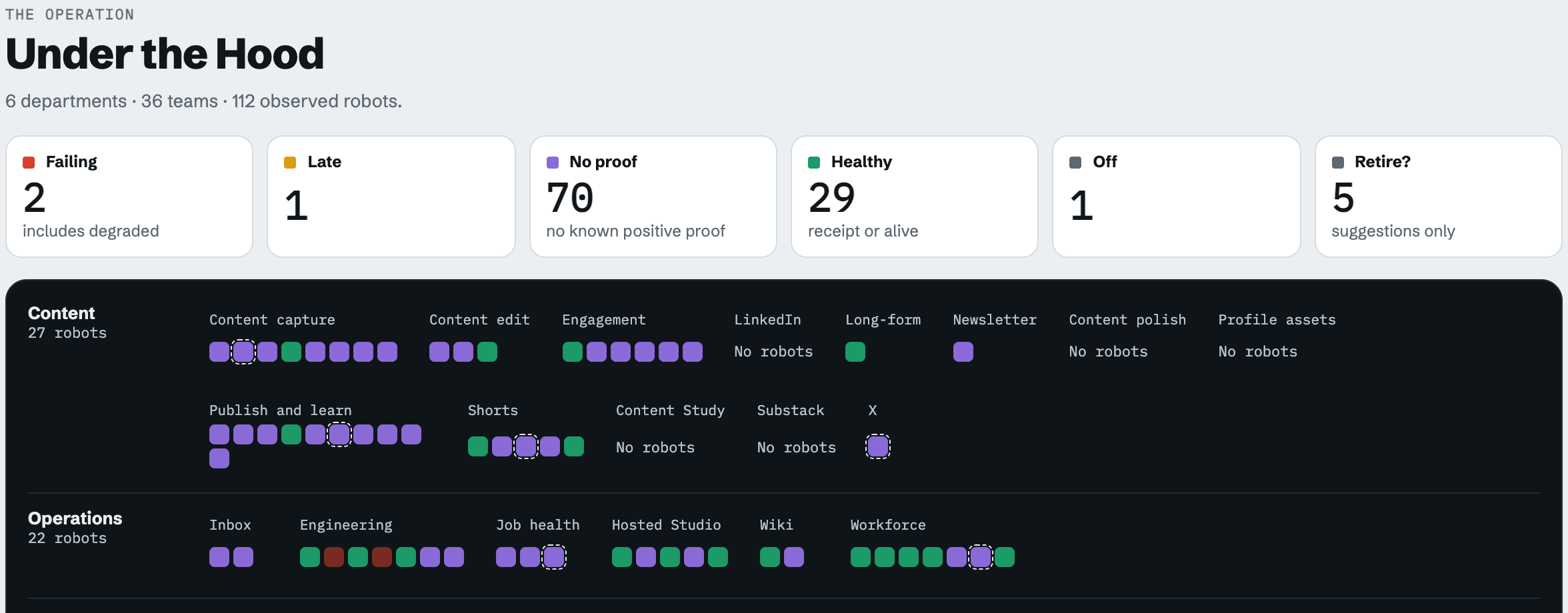 My Under the Hood board, October 29, 2026. 112 robots, 2 failing.
As I write this, the check-in robot is still red. You have one robot, so this is a 30-second check. Do it anyway. More on what runs on my machine is in what runs on my Mac mini.
Check it worked: count what you acted on after a week
After five mornings, look back at two numbers.
- How many “Needs me today” items you actually did something about. If most of them were real, keep it. If you ignored most, tighten the rules in step 1.
- How many “Worth a look” links you opened. Zero all week means the sources are wrong, or you don’t need the news half at all.
rarisma, also on Hacker News, put a lukewarm brief well: “The briefing thing is nice though not super useful.” If yours reads like that after a week, cut it down before you add anything.
Know what to jump on, and let the rest wait
My 7 a.m. post still runs. It’s still a wall, and I still don’t read it top to bottom. What I read is a message when a real person needs me and a news tab I open when I want news.
My rule: you gotta know what to jump on. Everything else can wait for you.
If your inbox is the real mess, sort your inbox with AI first. More setups like this live on my Claude at work hub.
Tonight, write your two lists from step 1 and paste the prompt from step 4 into the AI you already pay for.
FAQ
How do I get a daily AI briefing of what needs me?
Schedule one daily task in ChatGPT or Claude, or turn on Gemini’s Daily Brief. Tell it what counts as needing you, like a reply from a real person or a deadline in two days. Give it a few sources for your field, cap it near 150 words, and let it say nothing needs you on quiet days.
What happened to ChatGPT Pulse?
OpenAI sunset Pulse on June 17, 2026, and moved proactive updates into scheduled tasks. Pro users kept access for 14 days. OpenAI’s own advice is to ask ChatGPT to schedule a daily briefing based on your interests and past chats.
Can I get a daily AI brief for free?
Yes. ChatGPT Free can run one recurring task a day in a flexible window like morning or night. Gemini’s Daily Brief no longer needs a Google AI subscription in the US, but it needs a personal Google account, 18 or older, in English. Claude’s scheduled tasks are on paid plans only.
Can I choose what time my AI brief arrives?
On paid ChatGPT plans and on Claude, yes. ChatGPT Free only gets a flexible window, and exact times need a paid plan. Gemini’s Daily Brief arrives every morning, and Google’s pages don’t show a time setting, but a Gemini scheduled action runs at the time you pick.
Why do I stop reading my AI morning brief?
Usually because it’s too long and mixes urgent things with news. Split the two: only things you have to act on get a message, and news waits somewhere you visit. Cap the message at a few items and let it say nothing needs you on quiet days.
Where this comes from
The plan facts come from OpenAI, Anthropic and Google help pages, read October 29, 2026, same day as the Hacker News quotes.
The robots, the crash and the screens are mine, captured October 29. I haven’t tried Gemini’s Daily Brief myself, and I have no time-saved number for any of this.
Published October 30, 2026. Plan facts checked October 29 against each vendor’s help pages.

Written by
Chris AlarconChris Alarcon shows people who don’t code the boring Claude setup that actually works. He runs his one-person operation on these systems and shares every workflow, prompt, and tool combo in public. Start with the free 1-page setup.
The boring setup
It still won't know you tomorrow.
The Setup is one folder. Drop it into a Project, answer three questions, and Claude or ChatGPT writes your memory file and your voice file itself. It stops forgetting you, stops sounding like AI, and runs three real jobs by name. Twenty minutes tonight. No code. $39 until Nov 8 · 30-day refund.
See The Setup →Get the free 1-page setup
The boring 1-page setup. No code, no jargon. Get it now, then one short email from me each Tuesday.
