How to Use AI to Sort Your Inbox: 4 Steps, and Let Rules Do Most of the Work (2026)
Chris Alarcon ·
$ you'll have
An inbox that holds only what you have to do, with a ping only when a real person or a bill needs you.
ok your job, with the steps below
- Cost
- Free with Gmail filters; $20 to $30 a month for an AI that checks on a schedule
- Tools
- Gmail · Claude, ChatGPT or Grok Bot
Why this setup, and what you need
In August my inbox hit 4,832 emails. I had a robot sorting it the whole time.
It was doing exactly what I told it. Anything it wasn’t sure about stayed put, and “not sure” piled up for weeks.
So if you’re looking at a red badge with four digits on it and thinking AI should have fixed this by now: it can. Just not by letting the AI decide everything.
You could be a plumber, you could be a data scientist, it don’t matter what you are. Your inbox is one of the most important things you’ll have.
Mine now holds only what I have to do. Since October 10 it has run 50 passes, filed 396 emails, and flagged a real person who needed me 12 times.
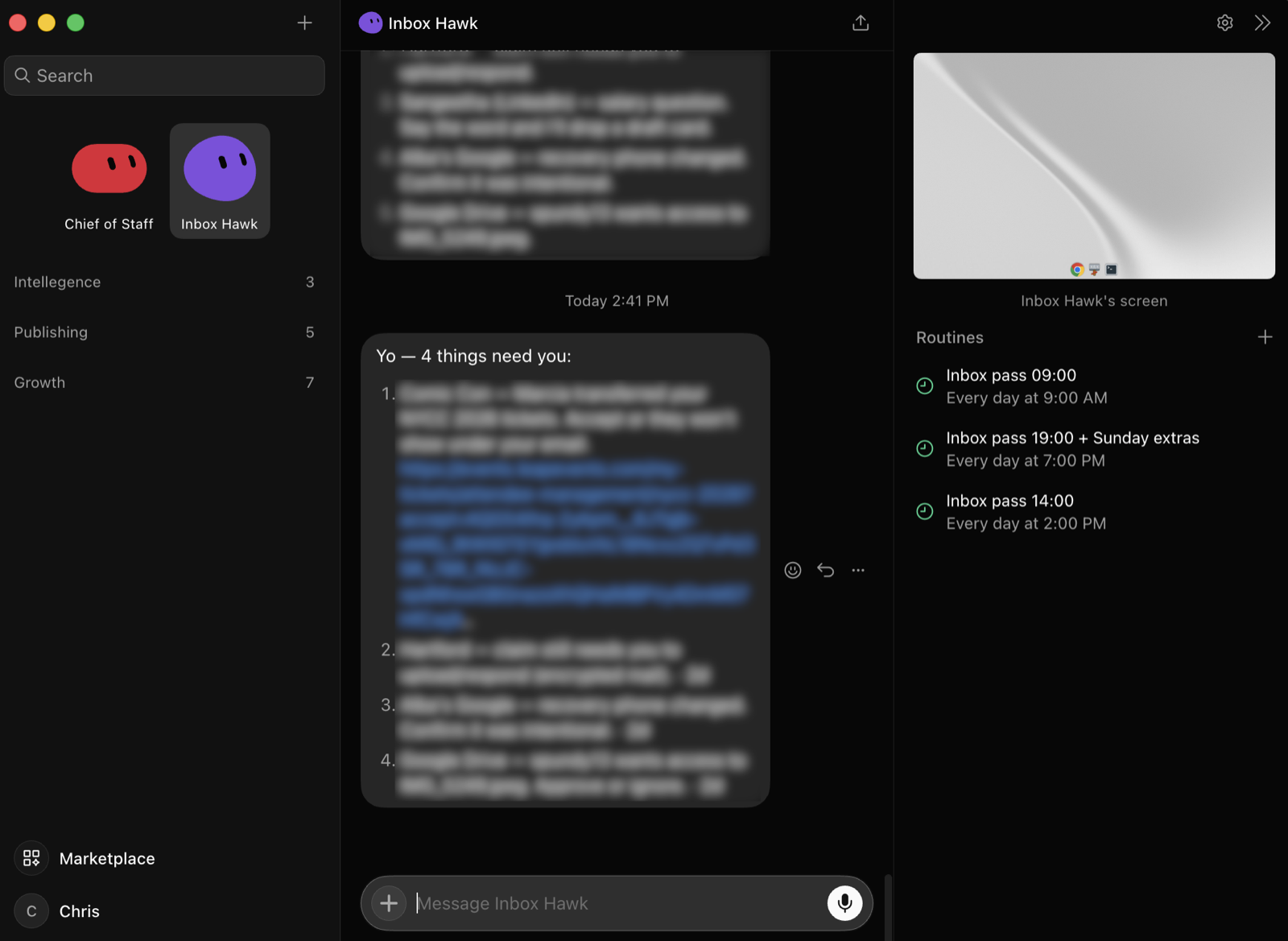 My Inbox Hawk on Grok Bot, September 10, 2026. Three passes a day, four things flagged.
That was the Grok Bot version in September. The same three passes run today as a small script on my Mac mini, and my ChatGPT agent texts me what needs me. You don’t need any of that. The AI you already pay for can do this job.
How to use AI to sort your inbox, in four steps and a check:
- Decide what’s allowed to stay: only mail you have to act on.
- Let rules file every sender you already know.
- Hand only the leftovers to your AI, on a schedule.
- Set the rails (never delete, never send), then patch every gap it misses.
What you need (as of October 29, 2026)
- A Gmail account. Filters are built in and free, per Google’s Gmail filters help page.
- One AI plan you already pay for, if you want it checking on its own. ChatGPT Free can only schedule a task once a day; paid plans go hourly, per OpenAI’s scheduled tasks article. Claude’s scheduled tasks are on Pro, Max, Team and Enterprise.
- Your top 20 senders. Step 2 starts there, and the AI part is quick once those rules exist.
- A work inbox? Ask IT before you connect it. The AI reads your mail in its own cloud, not on your laptop.
- Skip for now: paid inbox apps and anything that promises to answer email for you. Get the sorting right first.
Step 1: Decide what’s allowed to stay in your inbox
Write it down before you touch a setting. Two columns, and every email type goes in one.
| Stays in the inbox (you have to do something) | Gets filed with its label (a record) |
|---|---|
| A real person waiting on a reply | Receipts and shipping |
| A bill or payment that’s due | Security alerts, codes, sign-in notices |
| A calendar ask | Newsletters |
| A pitch or lead you’d answer | Promos and job alerts |
That’s the split my setup runs on. The August mess happened because my old list had more “keep” lanes than “file” lanes, so the inbox could only grow.
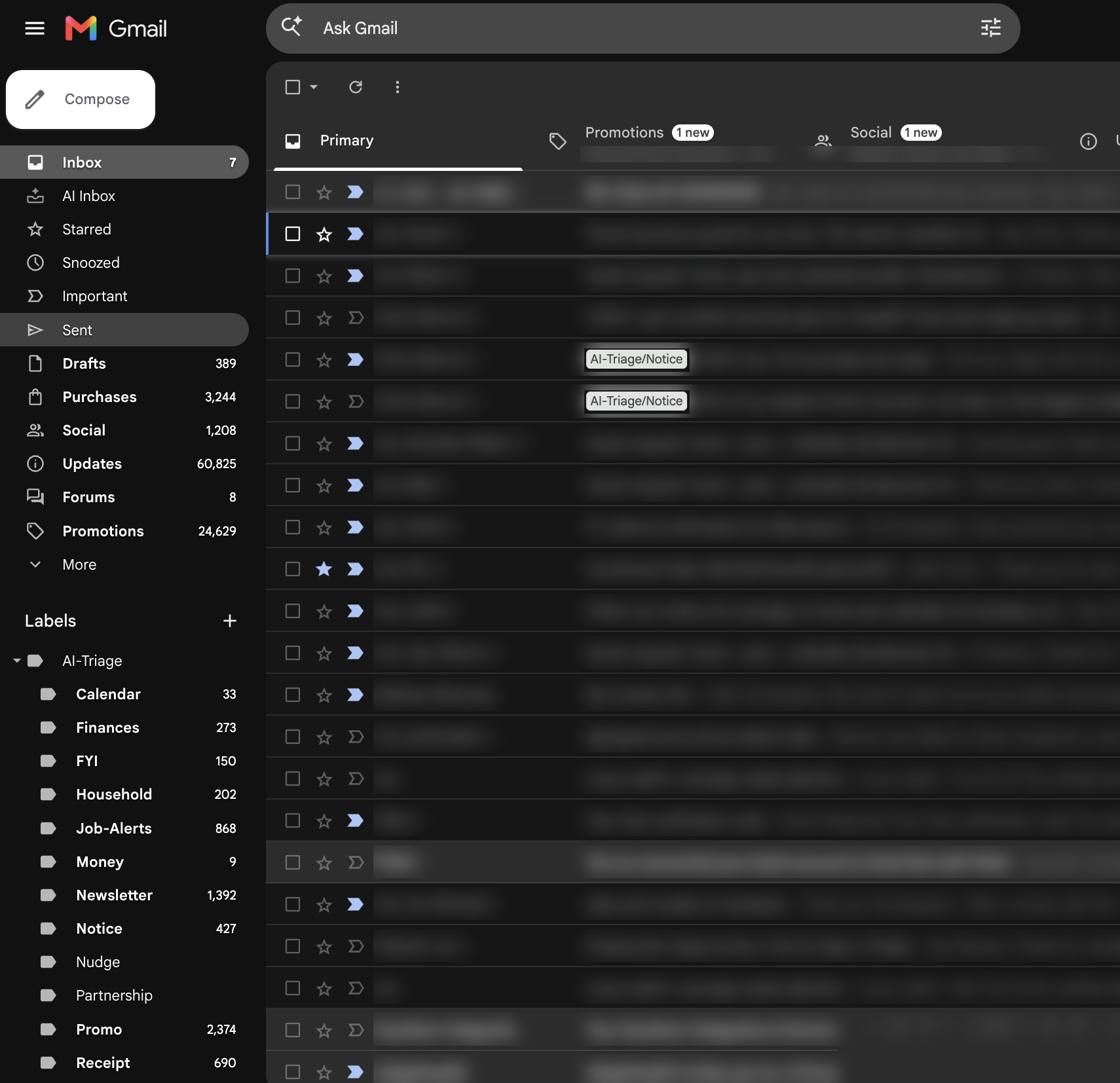 My Gmail, October 29, 2026. The AI-Triage labels on the left are my “file” column. Senders and subjects blurred.
Here’s how I’d find your two columns: brainstorm how do you use your inbox, what’s important to you, and reverse prompt your agent. Is there any rules that I’m missing?
Paste this into Claude, ChatGPT or Gemini:
I want my inbox to hold only emails I have to act on. Everything
else should be filed under a label, never deleted.
Here's what matters to me: [your job, your bills, your family,
the clients or people you can't miss].
Ask me 5 questions about how I use email, then give me two lists:
what stays in the inbox, and what gets filed (with a label name
for each). Then tell me which rules I'm missing.
Applicable for: anyone whose inbox mixes work, bills and promos in one pile.
Step 2: Let rules file every sender you already know
Gmail search bar > Show search options > type the sender > Create filter > Apply the label + Skip the Inbox (Archive it)
Google’s help page says a filter can “send email to a label, or archive, delete, star, or automatically forward your mail.” It runs on its own, it’s free, and it never guesses.
That last part matters more than the AI. Of those 396 filed emails, a plain sender rule filed 361. A small AI filter filed the other 35.
So the rules do most of the work. Start with your top 20 senders: the store you always buy from, your bank’s statement emails, the newsletters you skim. Those few senders are most of a normal day’s pile.
Two warnings from my own setup:
- Never put a bank, insurer or doctor on a mass unsubscribe. On some senders one opt-out kills the fraud alerts too. Mine protects every bank, insurer, health and government sender.
- Don’t make a rule for a real person. One wrong call and you mute someone who needed you.
Step 3: Hand the leftovers to the AI you already pay for
Maybe the first order of action is, yo, clean up my inbox. Unsubscribe from stuff.
Then give it the standing job, the same one I give mine: check three times a day. If something important, let me know. Other than that, just keep archiving and managing it for me.
One catch with “archiving”: the filters from step 2 are what actually move mail out. Gemini’s panel archives after your click, and the AIs below document labels, drafts and sends, not archive.
Here’s what each option can actually do in Gmail today:
| Option | Cost | What it can do in Gmail | Runs on its own? |
|---|---|---|---|
| Gmail filters | Free | Label, archive, star, forward, delete | Yes, on new mail |
| Gemini in Gmail | Google AI plan or eligible Workspace | AI Inbox surfaces to-dos, moves nothing. Side panel labels or archives after you confirm | No, every action needs your click |
| Claude (Gmail connector + scheduled task) | Pro, $20 a month | Labels and threads, drafts, sends with your approval. Archive isn’t documented | Yes, hourly to weekly, laptop can be closed |
| ChatGPT (scheduled task + Gmail) | Plus, $20 a month | Read, search, draft, send. Labeling isn’t documented | Yes, up to hourly on paid plans |
| ChatGPT dots | Pro, Business Premium, Enterprise | Uses your connected email for tasks, texts you (beta, US Pro) | Yes, always on |
| Grok Bot | Premium, $30 a month | Search, read, draft, send, apply labels | Yes |
Sources for every row are in Google’s Gemini in Gmail page, Anthropic’s Google Workspace connector page, OpenAI’s dots guide and xAI’s Grok Bot apps page, read October 29, 2026.
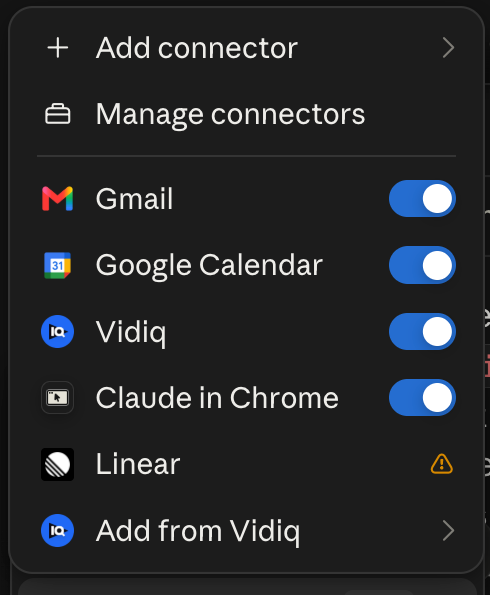 My Claude connectors menu, September 5, 2026. Gmail on.
On Claude, that toggle is the whole setup: turn on Gmail, then add a scheduled task. Anthropic’s help page lists what the connector can do:
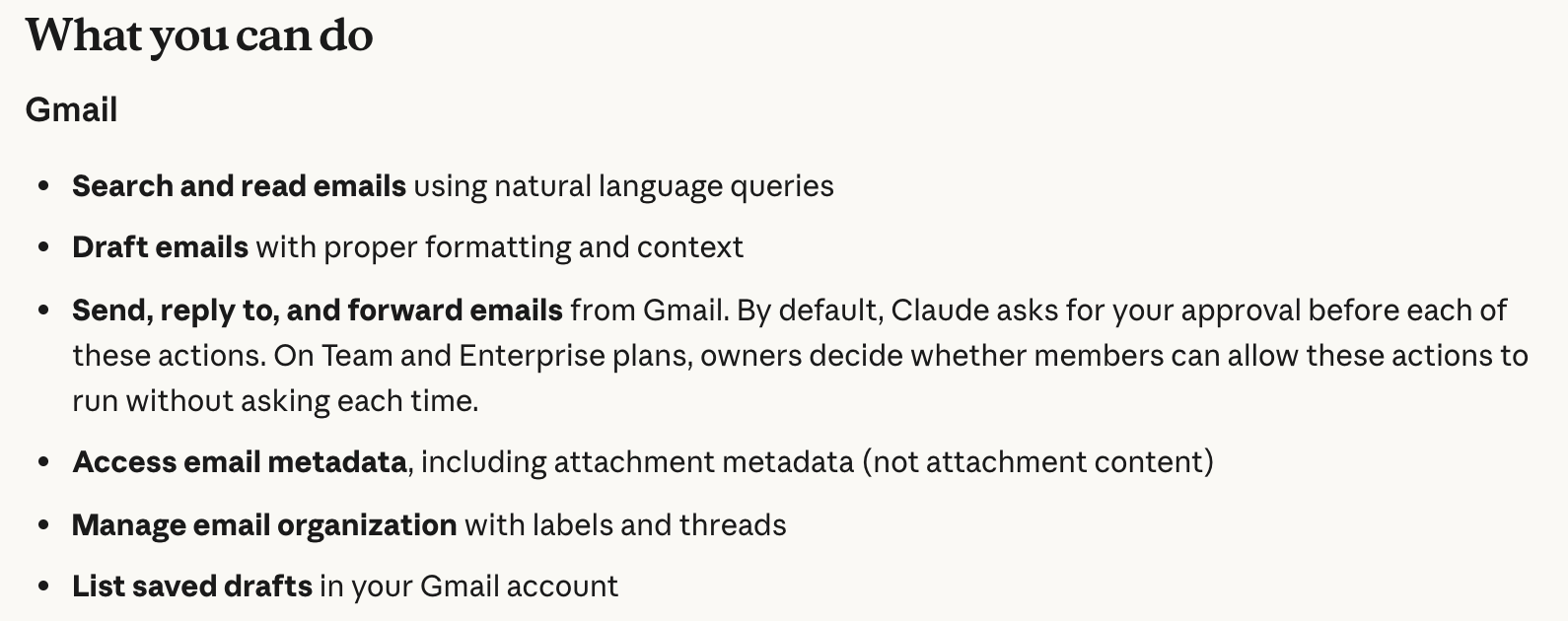 Anthropic’s Google Workspace connector help, Gmail section, captured September 2026.
The standing job I’d paste into a scheduled task, at 9, 2 and 7:
Check my Gmail for new mail since your last run.
- Label each email using my list: [paste your two columns].
- Anything you're not sure about stays in the inbox, unlabeled.
- Never delete anything. Never send or reply. Drafts only.
- Only message me if a real person needs a reply or a bill is
  due in the next 7 days. Otherwise stay quiet.
- If you see a sender that should have a rule, list it at the end.
Gareth321 on Hacker News described almost the same ask in one line: “Check my emails every 15 minutes and help me triage.” Fifteen minutes works if your plan allows it. Three times a day is plenty for most people.
The deeper Claude vs ChatGPT split for email, privacy included, is in Claude vs ChatGPT for email. If you’re on Claude, turn on the Gmail connector first.
Step 4: Set the rails, then patch the gaps it misses
Four rails, in the instructions and in your head:
- Never delete.
- Never send on its own. A draft is not permission.
- Not sure means it stays in the inbox.
- Ping only for a real person or a bill.
Then accept that it will miss things. Think of it like a skill. You’re working with the agent. It’s gonna take some time to get to the rhythm.
Mine has missed plenty. In July my first archive run logged 266 emails as archived and moved zero of them. On October 21 a pass stopped halfway through filing, and on October 22 the alert itself failed to reach me.
None of that was a reason to quit. You do the best you can like I did. And when you see the gaps, patch them.
Patching is one message to your agent:
This email got missed: [sender, subject]. It should have been
[filed under X / flagged to me]. Why did it slip, and what rule
do we add so it doesn't happen again?
The August fix was exactly that loop. A rules-only sweep with a full undo file took the inbox from 4,832 to 530. I approved unsubscribing from 126 bulk senders, picked from a list it proposed.
Check it worked: count the pings, then skim
Look at two things after the first week:
- How often it pinged you. A few times a day, each one a real person or a bill, means it’s working. Dozens of pings means your “stays” column is too wide.
- What’s left in the inbox. It should be a short list you could clear in one sitting.
Then skim anyway. I do skim it, but not relentless anymore. I know that for the most part I’m not missing anything important.
reddalo on Hacker News put the other side plainly: “I just want to see my inbox, I don’t trust an AI filter to sort emails for me.” Fair. That’s why the rails say nothing gets deleted, and why the skim stays.
Rules first, then the AI: my inbox stays covered
The robot didn’t fail me in August. My list did. Once the list said “only what I have to do stays,” that four-digit badge turned into a couple of pings a day. At this point my inbox is more than covered.
My rule: when you see the gaps, patch them. Don’t be scared to mess up.
Where to start depends on what you pay for:
- On Claude Pro: turn on the Gmail connector and add one scheduled task.
- On ChatGPT Plus: one scheduled task with Gmail, then let filters do the moving.
- Won’t let an AI read your mail? Steps 1 and 2 alone do most of the filing.
Tonight, write your two columns. Tomorrow, make 20 filters. The AI part is the easy part. More setups like this one live on my Claude at work hub, and the full job list my agents run is in Grok Bot use cases.
FAQ
Can AI sort my Gmail inbox automatically?
Partly. Gmail filters already file known senders on their own, for free. An AI on a schedule (Claude or ChatGPT scheduled tasks, ChatGPT’s dots, Grok Bot) can check new mail, apply labels where its Gmail tool supports it, and tell you what needs you. Rules should still do most of the filing, with the AI on unknown senders.
Will an AI delete or send my emails without asking?
Not by default on the big tools. Claude asks for approval before sending, replying or forwarding. ChatGPT scheduled tasks pause for approval before an action that sends a message or changes external data. Gemini in Gmail never deletes, archives or labels until you confirm. Still, write never delete and never send into your instructions.
Do I need a paid plan to sort my inbox with AI?
Not for the rules part: Gmail filters are free. For an AI that checks on its own clock, yes. ChatGPT Free can only run a scheduled task once a day, while paid plans can run hourly. Claude’s scheduled tasks are on paid plans only, Pro and up.
Can Gemini organize my Gmail inbox?
Two different features. AI Inbox surfaces suggested to-dos and topics from your Primary tab, but it does not move anything. The Gemini side panel can label, archive or delete emails, but only after you confirm each action, and it can’t create new labels. Both need a Google AI plan or an eligible Workspace plan.
Is it safe to let an AI read my email?
It’s a trust call, and some people won’t make it. Keep the AI’s job narrow: label and flag, never delete, never send on its own, and keep anything it isn’t sure about in the inbox. Read each tool’s training settings before you connect a work account, and ask IT first if it’s a company inbox.
Where this comes from
The tool facts come from Google, Anthropic, OpenAI and xAI help pages, read October 29, 2026. The numbers are my own pass log since October 10 and my August cleanup records.
The two columns, the rails and the patch loop are how I run my inbox. I haven’t tested Gemini’s side panel or ChatGPT’s scheduled tasks on my mail, and nothing here is a time-saved number.
Published October 29, 2026. Tool facts checked that day against each vendor’s help pages.

Written by
Chris AlarconChris Alarcon shows people who don’t code the boring Claude setup that actually works. He runs his one-person operation on these systems and shares every workflow, prompt, and tool combo in public. Start with the free 1-page setup.
The boring setup
It still won't know you tomorrow.
The Setup is one folder. Drop it into a Project, answer three questions, and Claude or ChatGPT writes your memory file and your voice file itself. It stops forgetting you, stops sounding like AI, and runs three real jobs by name. Twenty minutes tonight. No code. $39 until Nov 8 · 30-day refund.
See The Setup →Get the free 1-page setup
The boring 1-page setup. No code, no jargon. Get it now, then one short email from me each Tuesday.
